Can AI Explain Error Messages and What to Do?
Can AI explain error messages? Learn what AI can clarify, what context to provide, and when a human expert is still the safest next step for users today.
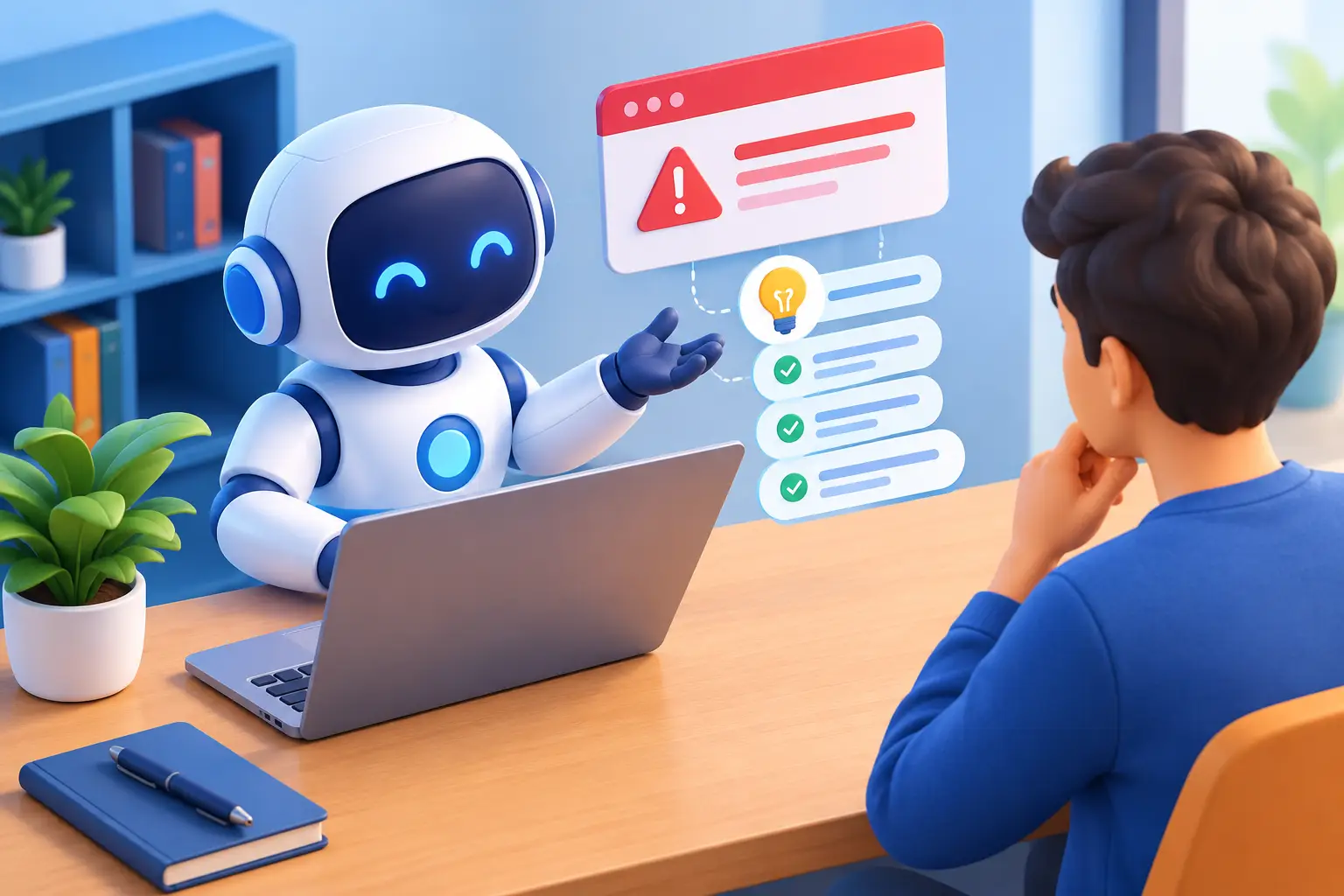
A red warning banner, a string of code, or a vague message such as “Something went wrong” can stop a task cold. So, can AI explain error messages? Often, yes. AI can translate technical language into plain English, identify likely causes, and suggest sensible next steps. But the quality of the answer depends on the context you provide, and some errors still require careful human judgment.
The useful shift is to treat an error message as evidence, not a verdict. It is one clue about what a system expected, what it received instead, and where the process may have failed. An AI assistant can help you read that clue more clearly.
What AI Can Explain About Error Messages
An error message usually contains more information than it appears to at first glance. It may name a missing file, point to a line of code, identify a permission problem, cite an HTTP status code, or reveal that an app could not connect to a service. Even when the wording is unhelpful, the timing and screen where it appears are meaningful context.
AI can break the message into understandable parts. For example, a developer seeing `TypeError: Cannot read properties of undefined` may know the immediate issue is an attempt to use data that does not exist yet. A good explanation goes further: it can describe what “undefined” means in that language, show where to inspect the expected value, and suggest checks that avoid masking the root problem.
For nontechnical users, the benefit is equally practical. If a computer says it cannot complete an update because there is insufficient storage, AI can explain that the device needs temporary working room as well as space for the final download. It can then suggest reviewing large files, clearing temporary data, or trying the update again after freeing space.
AI is especially helpful with error messages that are written for systems rather than people. Database notices, browser console errors, software installation logs, device alerts, and cloud-service responses can feel opaque because they assume background knowledge. A conversational explanation gives people a way to ask the natural follow-up: “What does that mean for me?”
Can AI Explain Error Messages From a Screenshot?
Yes, visual context can make a major difference. A copied message may omit the application name, the button you selected, a warning icon, or a setting visible behind the pop-up. A screenshot can preserve those clues.
With a multimodal AI assistant, you can show the error as it appears and ask for a plain-language explanation. This is useful when the message is difficult to select, when a device displays a code without details, or when you are unsure which part of a crowded screen matters. You might show an app permission prompt, a printer display, a spreadsheet warning, or a coding environment with its highlighted line.
Still, avoid sharing sensitive information accidentally. Screenshots can contain account numbers, email addresses, API keys, customer records, internal URLs, or personal messages. Crop or redact what is not needed before asking for help. Privacy-aware assistance begins with choosing what you share, and you should retain control over stored conversation history.
The Context That Produces Better Answers
An AI cannot reliably diagnose an error from a single sentence in every case. “Access denied,” for instance, could involve a password, a user role, a file location, a network policy, or an expired session. The same words can mean different things in different tools.
Give the assistant the exact error text, the name and version of the app or service, what you were trying to do, and what changed just before the error appeared. Mention whether the problem happens every time or only with a specific file, account, device, or network. If you have already tried a fix, say so. That prevents repetitive advice and helps narrow the possibilities.
For code, include the smallest relevant section rather than an entire project when possible. Add the programming language, framework, full stack trace, expected result, and actual result. If the error began after a dependency update or configuration change, that detail may be more valuable than several lines of surrounding code.
A strong prompt could read: “I am trying to export a PDF from this design app on Windows 11. The error says ‘write permission denied’ after I choose a network folder. Saving to my desktop works. Explain the likely cause and give me safe checks in order.” This frames the situation, distinguishes what works from what does not, and asks for an actionable sequence.
Where AI Advice Needs Verification
AI can generate a plausible explanation even when it does not have enough evidence to prove the cause. That is its central limitation with troubleshooting. Similar-looking errors can arise from very different failures, especially across operating systems, software versions, custom configurations, and company-managed devices.
Treat suggestions as hypotheses to test, not instructions to follow blindly. Ask the AI to separate likely causes from less likely ones, explain why each test is useful, and identify the safest first step. This approach reduces the risk of changing several settings at once and losing the trail back to the real issue.
Be particularly cautious when a proposed fix involves deleting data, resetting a device, changing security permissions, disabling protection software, modifying a production database, or running commands you do not understand. In these cases, back up important work, read the command carefully, and seek qualified support if the system is business-critical.
AI also cannot replace official support channels for account recovery, licensing issues, payment disputes, hardware failures, or suspected security incidents. If an error appears alongside unexpected login alerts, unknown transactions, ransomware messages, or signs that someone else accessed an account, secure the account through the provider’s official process rather than troubleshooting through copied instructions.
A Better Way to Work Through an Error
The most effective troubleshooting is usually calm and sequential. Start by preserving the exact message. Note the action that triggered it and take a screenshot if it helps. Then ask for an explanation in plain language before asking for a fix. Understanding the failure changes the quality of every next decision.
Next, test the least disruptive explanation first. A temporary connection problem may call for checking your network and retrying. A file-specific error may call for confirming the file path or permissions. A code error may call for printing or inspecting the value named in the stack trace. Change one thing, observe the result, and keep a brief record.
If the first recommendation does not work, tell the AI what happened rather than restarting the conversation with the same error. The failed test is useful evidence. A continuing conversation can narrow the problem over time: the message changed, the issue occurs only on mobile, reinstalling did not help, or another user can access the same resource.
This is where a conversational, visual assistant can feel more natural than a search box. With Visionika, for example, a user can describe what they were doing, show the screen or document involved, and ask follow-up questions in their own words. The goal is not to make troubleshooting feel more technical. It is to make the next useful question easier to ask.
The Best Question Is Often “What Should I Check First?”
Error messages are designed to signal a mismatch, not always to teach you how to resolve it. AI can close much of that gap by translating jargon, organizing possibilities, and helping you test them safely. It works best when you provide the surrounding details and stay willing to verify the answer.
When an error interrupts your work, do not let a cryptic line of text dictate the moment. Capture the evidence, explain the situation, and ask for the smallest safe next check. That is often enough to turn confusion into a clear path forward.